


How to Delete Duplicate Files on a Mac: Which Copy to Keep
A free duplicate file finder app for Mac that compares what is inside your files, shows its progress, and lets you choose which copy stays. Tested on 1.4 TB.
The short version. Checking 1.4 TB of files for exact duplicates takes about four minutes on a high-end Apple silicon Mac when the work is done properly. A duplicate finder from the Mac App Store took 1 hour 23 minutes on the same files and found the same duplicates. The difference was not the disk. This page explains how duplicate finders work, why some are slow, the decision that matters more than speed (which copy to keep), and a free app, Dupe Sweep, that I built around those ideas.
Download Dupe Sweep · Source code · Buy me a coffee
What I measured
I compared a Mac App Store duplicate finder with the engine behind Dupe Sweep on the same folders, on the same Mac (a Mac Studio with an M1 Ultra and 128 GB of memory). The folders held 3,515 files and 1.39 TB of video, photos and documents.
| Mac App Store duplicate finder | Dupe Sweep engine | |
|---|---|---|
| Time for 1.39 TB | 1 hour 23 min 34 s (from its own log) | 4 min 10 s, or 1 min 47 s with the Mac fully devoted to it |
| How it reads files | One file at a time, small reads, built for Intel Macs | Two files at a time, 8 MB reads, SHA-256, native |
| Duplicates found | 223 | 223 |
| Space those duplicates occupy | 385.74 GB | 385.74 GB |
| Files scanned | 3,258 | 3,258 |
The last three rows match to the digit once both programs use the same rules (ignore files under 10 KB, skip hidden files), which I worked out by comparing the other app’s results screen with mine. I also checked my hashes against SHA-256 values computed by completely separate code for 863 files: all 863 agreed.
Two things about those times. Only 763 GB of the 1.39 TB had to be read at all, because a file whose size is shared with no other file cannot be a duplicate. And the times for Dupe Sweep come from the prototype of its engine; the shipping Swift version reads the same way and, on a later real folder set, finished 93 GB in 53 seconds against 60 seconds for the prototype. Details are at the end.
Why a duplicate finder can be slow
Watching the other app with the Mac’s own tools shows where the time went. It is built for Intel Macs, so an Apple silicon Mac translates it as it runs. It works through the files on a single thread in small reads, so one processor core was fully busy while the other nineteen and the disk sat mostly idle. That held it to roughly 350 MB/s, and a recent internal drive can supply many times that.
Nothing about finding duplicates needs that. The disk can read several files at once, the processor has dedicated hardware for SHA-256, and large reads are far cheaper than small ones.
How duplicate finders find duplicates
Every honest duplicate finder does three things, in this order.
- Group files by size. If a file’s size is not shared with any other file, it has no twin. For most folders this removes the great majority of files from further work.
- Compare the files that are left by looking inside. Dupe Sweep first fingerprints the start, middle and end of big files to throw out same-size files that differ, then reads the rest completely and computes a SHA-256 of each. Two files with the same size and the same SHA-256 are the same file for every practical purpose.
- Report groups of identical files.
What a duplicate finder should never do is trust names. Two files called report.pdf can differ, and IMG_4032.HEIC and IMG_4032 copy.HEIC can be identical. Names only help with the next step.
The hard part: which copy do you keep?
Finding duplicates is a solved problem. Deciding which copy to delete is where people lose files they cared about. Most tools either leave this entirely to you, one file at a time, or apply a single hidden rule (“keep the newest”).
Dupe Sweep makes the rule visible and lets you pick it:
| Rule | Keeps | Good for |
|---|---|---|
| Smart (default) | The copy that looks like the original: not in Downloads or Desktop, no “copy” or “(1)” in the name, in the fuller folder, then the oldest | Most clean-ups |
| Larger folder | The copy in the folder that holds the most files | A real photo library and a stray copy of one picture |
| Most recent folder | The copy in the folder that changed last | When you have just reorganized and the old locations are stale |
| Oldest folder | The copy in the folder that has gone longest untouched | When the newest folders are scratch space |
| Newest file or oldest file | The most or least recently modified copy | Documents that were edited in one place |
| Closest to the top | The copy with the fewest folders above it | Flat archives |
On top of any rule you can pin folders (“always keep copies in my Photos folder”), click any single copy to keep that one instead, or leave a whole set alone. The list shows exactly which copy is marked KEEP and which are marked TRASH before anything moves.
Two traps that other tools do not mention
iCloud. If your Documents and Desktop folders sync with iCloud, trashing a file in them also removes it from iCloud. Dupe Sweep skips files that exist only in iCloud rather than download them, and it tells you how many it skipped.
Copies that cost nothing. On modern Macs, copying a file in Finder often creates an APFS clone: a second name for the same blocks on disk. Deleting a clone frees no space at all. Many duplicate finders report “you can recover 385 GB” as if every copy were a separate cost. Dupe Sweep asks the file system where each file’s blocks live and counts clones as free of cost, so the number at the top of the screen is the space you will actually get back.
Using Dupe Sweep
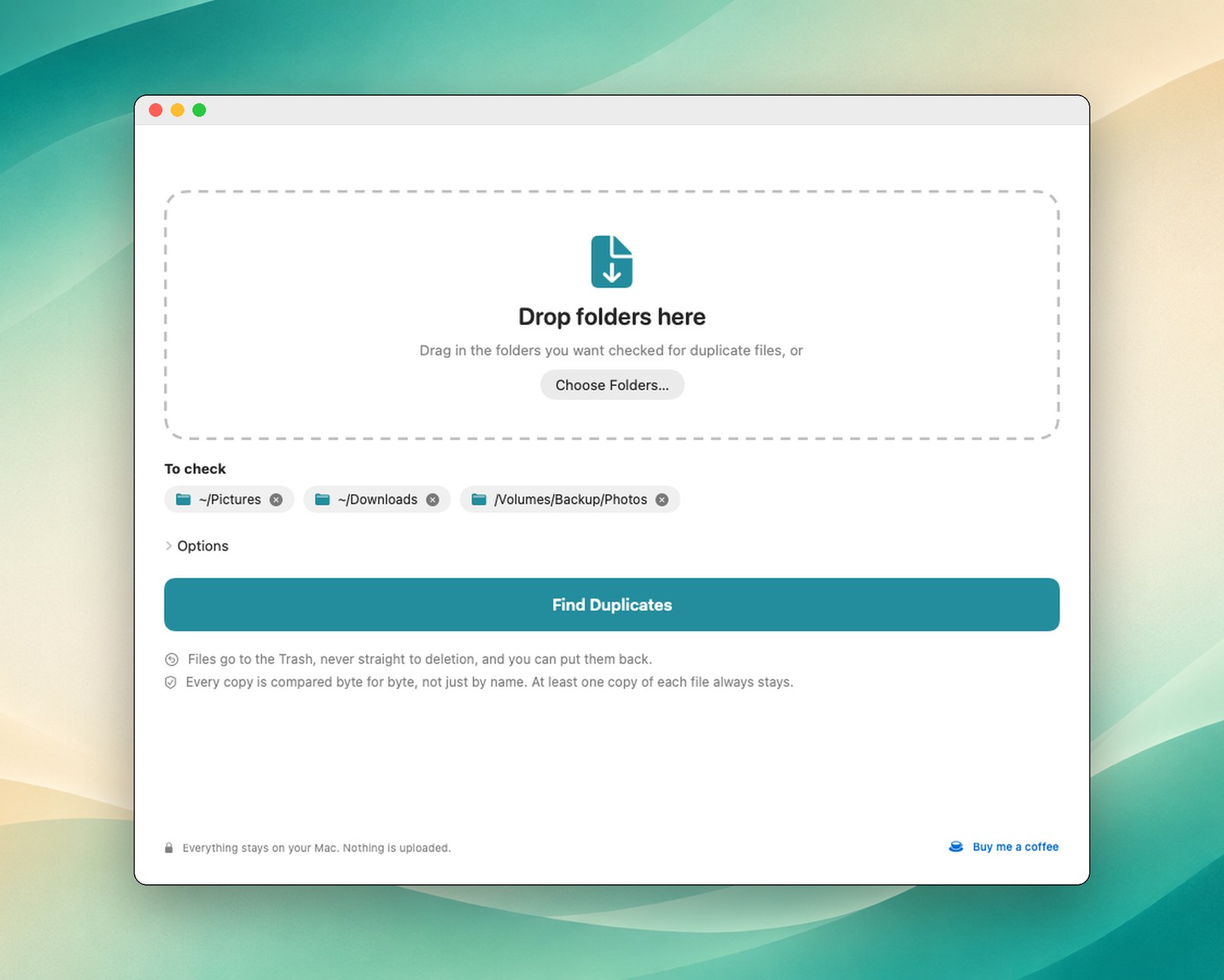
1. Drop folders on the window
Any folders, including ones on external drives.
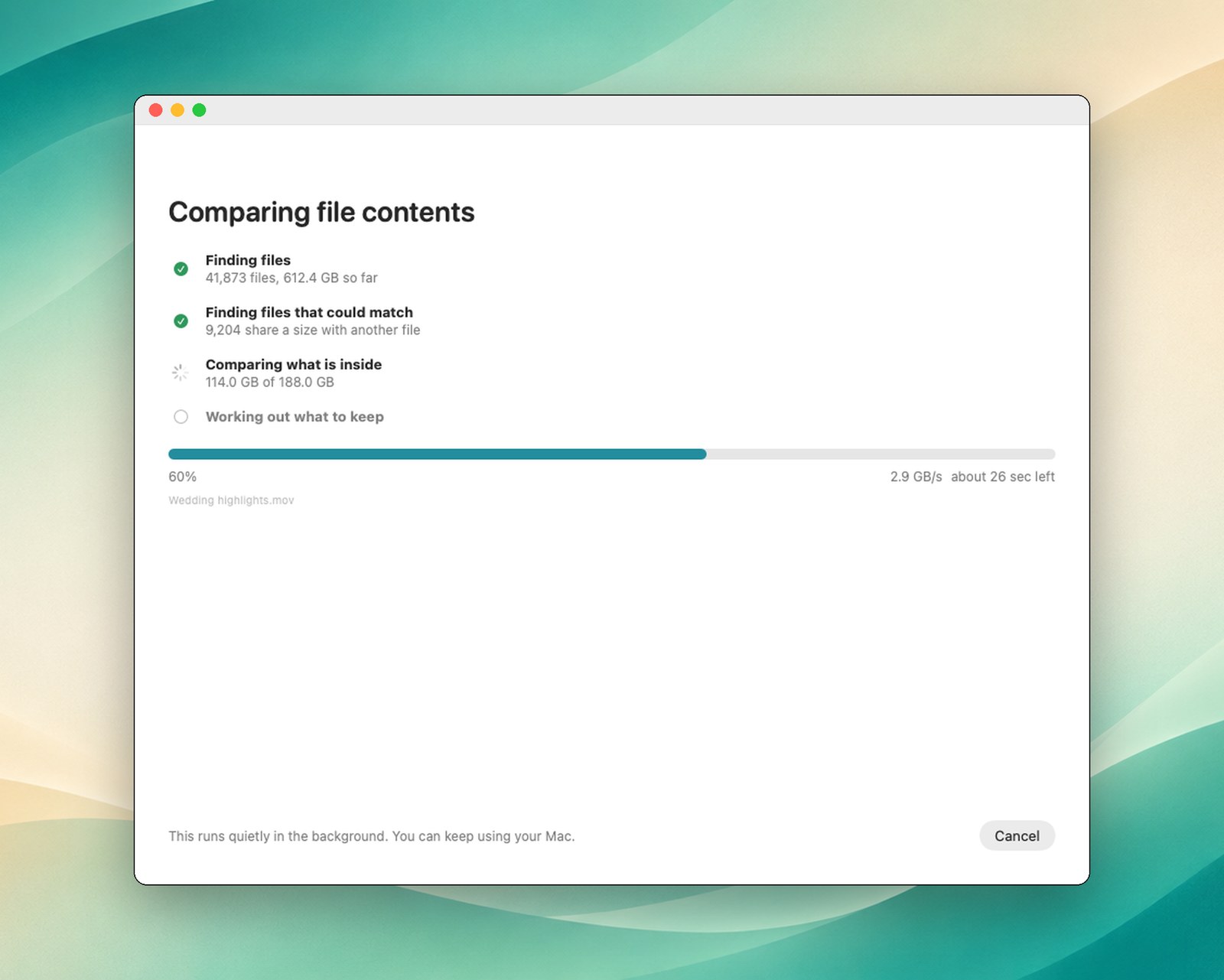
2. Watch the progress
It shows the four steps, how much it has read, how fast, and how long is left. It runs at low priority, so you can keep working.
3. Choose which copy stays
Review the list. Open any set to see every copy and its folder.

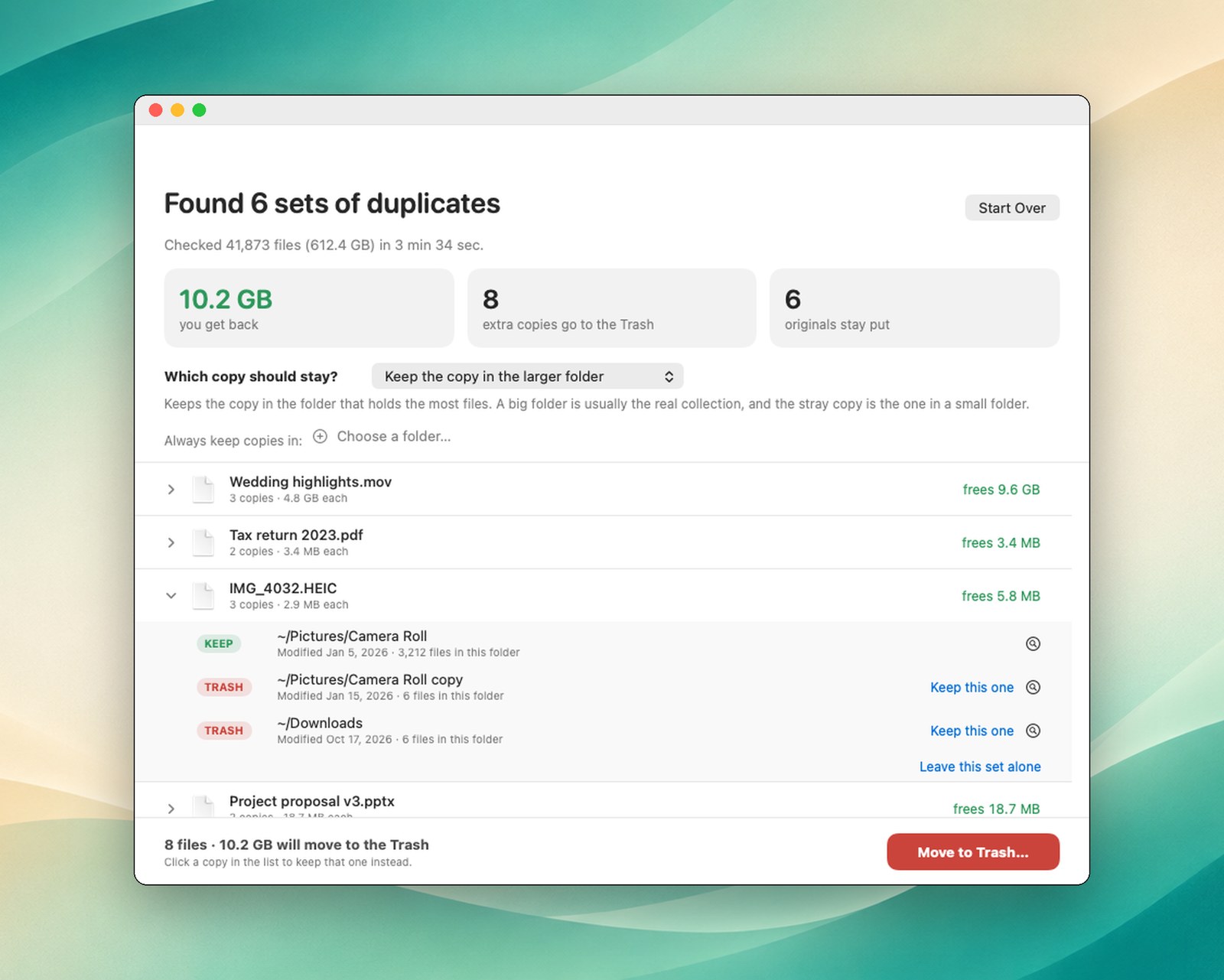
4. Move to Trash
One button, with a confirmation that says how many files and how much space.
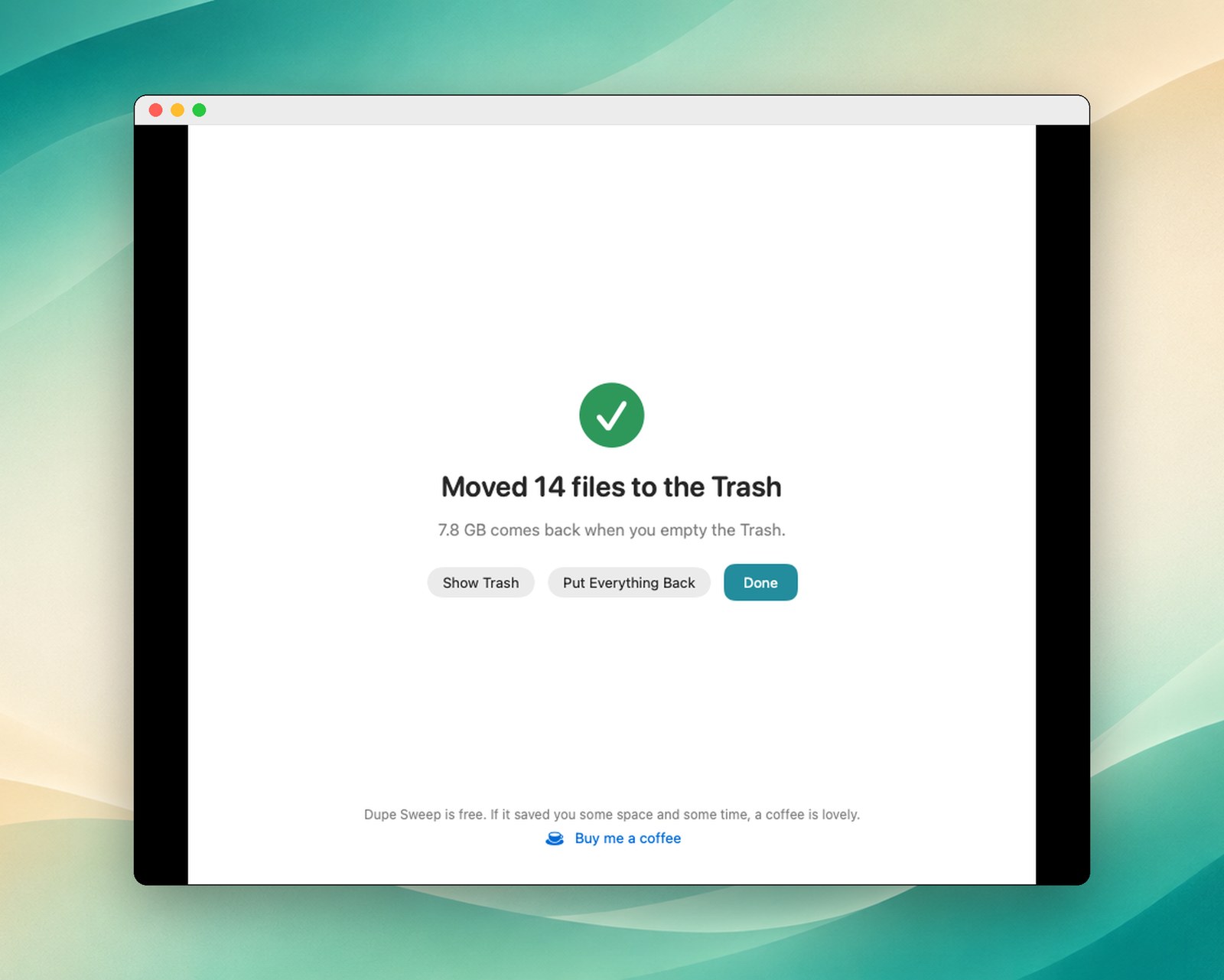
The screenshots use made-up files.
Does it slow your Mac down?
A scan reads a lot of data, so I measured what it does to everything else. For 30 seconds while a scan ran, a probe read 64 KB from a random spot in a file (a real disk read every time) ten times a second, and a second job wrote a 3 GB file to disk and then made 1,500 small reads, the kind of work an editing app or a backup does. I ran each case three times in rotating order and report the middle value.
| While the scan runs | Scan speed | Typical small read | Slowest 1 in 100 | Write a 3 GB file | 1,500 small reads |
|---|---|---|---|---|---|
| Nothing running | n/a | 0.65 ms | 5.1 ms | 1.15 s | 0.39 s |
| Dupe Sweep as shipped (two files at a time) | 2.1 GB/s | 0.25 ms | 3.4 ms | 1.05 s | 0.47 s |
| Eight files at a time (not offered in the app) | 4.1 GB/s | 0.62 ms | 7.9 ms | 1.07 s | 0.45 s |
Dupe Sweep as shipped is indistinguishable from an idle Mac: the differences are inside the noise from everything else macOS does in the background. The scan runs at low priority and reads two files at a time on purpose. On the larger test, with eight huge video files being read at once, ordinary small reads on the same drive slowed from 0.5 ms to 3.7 ms and a 1,500-read job took 13 times longer. Nobody would notice either number alone, but it is why the app does not try to read everything at once. Folders full of small files, like the set above, are much less sensitive.
How it stays safe
- Files go to the Trash, never straight to deletion. Put Everything Back undoes the whole move.
- Every set keeps at least one copy. Whichever rule you choose, the app cannot select all copies of a file.
- Just before a file moves, Dupe Sweep checks it again: unchanged since the scan, and a kept copy still there. If anything changed, it leaves that file alone.
- It never goes inside system folders, your Library folder, apps, photo libraries (the Photos library manages its own duplicates) or
node_modulesfolders. - It does not connect to the internet. There is no account, no tracking and no upload.
What it does not do
- It finds exact copies only. Similar photos (the same shot at a different size, say) are not duplicates and are not touched.
- It does not look inside the Photos library, app bundles or
node_modulesfolders. - Files that live only in iCloud are not compared.
- It needs macOS 14 or later.
Download
Dupe Sweep for Mac is free and open source. It runs on Apple silicon and Intel Macs.
Dupe Sweep for Mac
Free. Apple silicon and Intel. macOS 14 or later. Under 2 MB.
Download Dupe Sweep 1.0 Buy me a coffee
First time you open it, macOS may say it cannot verify the app. Open System Settings, then Privacy & Security, scroll down and click Open Anyway. You only do this once.
Source code and release notes: github.com/al-b-goldin/dupe-sweep (MIT license). If it saved you space or time, buy me a coffee.
Questions
Is it safe to use on my whole Mac? Point it at the folders you care about, such as Documents, Downloads, Pictures and external drives. It refuses system folders and your Library folder. Everything it removes goes to the Trash first.
Why not just delete the duplicates? Because the Trash costs nothing and gives you a way back. The space returns when you empty the Trash.
Does it find duplicates between two drives? Yes. Add both and choose the rule. Pin the drive you want to keep and every copy on it stays.
Will it find similar photos? No, only exact copies.
Why is it free? Because it is a small tool I wanted to exist. It is open source under the MIT license, so you can read exactly what it does. If you like it, there is a coffee link.
How these numbers were measured
- Hardware. Mac Studio, Apple M1 Ultra, 20 cores, 128 GB of memory, internal SSD.
- Data. 718 folders and files chosen in the other app, 3,515 readable files, 1.39 TB, plus 74 iCloud-only files that neither program can compare.
- The other app. Time is the hashing duration from its own log. Its results screen read: 3,258 files scanned, 223 duplicates found, 385.74 GB, total size 1.40 TB. I used no inside knowledge. I watched its process with the Mac’s own tools: how much of one core it used, how fast it read (about 350 MB/s), and how many bytes it read in total (747 GB).
- My engine. The prototype (the same algorithm in Python) took 250 s at its gentle default and 107 s with eight files at a time. With the other app’s rules it printed 3,258 files, 223 duplicates and 385.74 GB. Its group-by-group results were identical whether the final comparison used SHA-256 or MD5.
- The shipping app. A Swift version of the engine, with a universal Intel and Apple silicon build. On a second real folder set (77,155 files, 253.9 GB, 93.4 GB read) it took 52.7 s, against 60 s for the prototype, and found the same duplicates apart from 12 files inside developer
node_modulesfolders, which the app deliberately does not enter. - Limits. One Mac, one data set for the head-to-head, and one run each. Some of the data may have been in memory from earlier reads. The disk speed on your Mac, and whether your files sit on an external drive, will change your times.


© 2023 by Al B. Goldin